How to Use JsonXmlEditor as a Markdown Editor and Reader on Mac
Markdown works best when the source stays readable. Headings, links, lists, emphasis, and code blocks remain plain text, so a document is easy to edit in a terminal, a code repository, or a full writing app. The CommonMark reference listed in Sources below covers the core syntax without hiding it behind a visual editor.
JsonXmlEditor adds a focused Mac workspace for that style of writing. Open a `.md` or `.markdown` file, edit the source in the left pane, read the formatted result in the right pane, and save the document when it is ready. You can keep Markdown next to JSON, XML, YAML, and REST notes instead of switching between unrelated tools.
This guide shows a practical workflow for developers, technical writers, and anyone who wants a local Markdown editor and reader that keeps the underlying text visible.
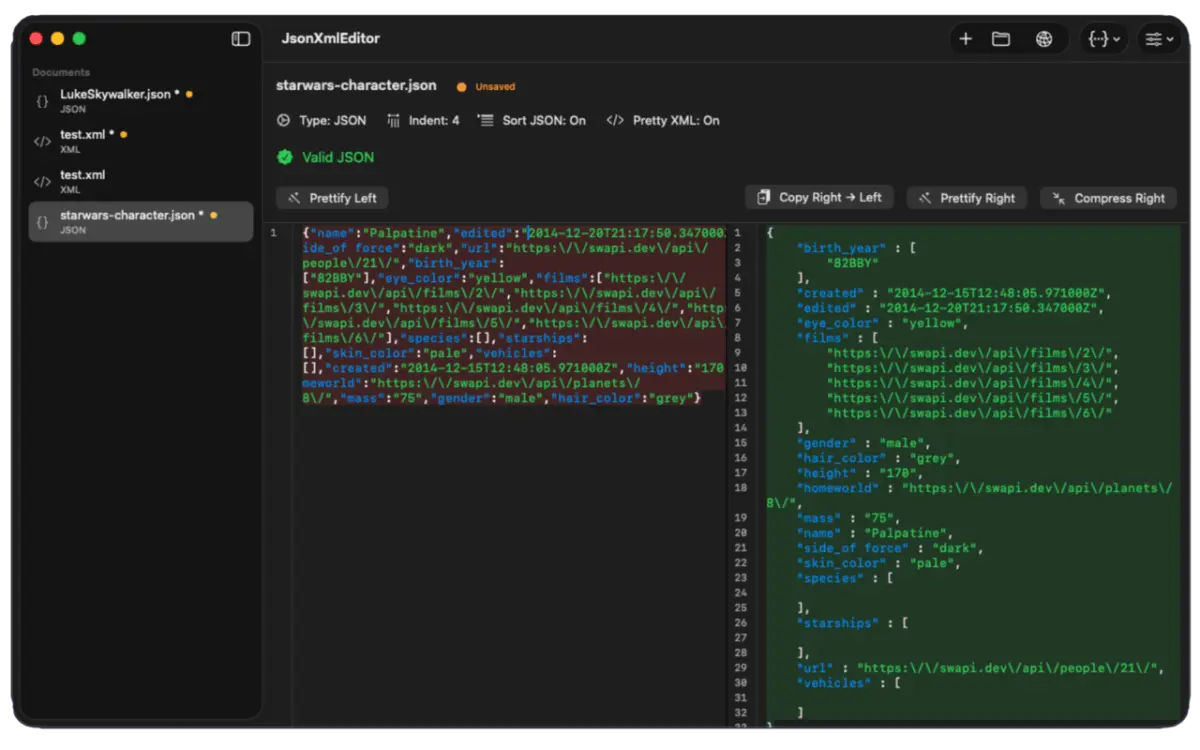
Use JsonXmlEditor as a Markdown editor and reader
- Open a Markdown file Open a `.md` or `.markdown` document from Finder or the app’s Open command.
- Write in the source pane Edit headings, paragraphs, links, lists, and code blocks as plain Markdown.
- Read the preview Use the formatted pane to review hierarchy, spacing, links, and code examples.
- Save and verify Save the file, then check it in the destination renderer before publishing.
Why use a Markdown editor that keeps the source visible?
A Markdown file is both a document and its own source. That makes it portable, reviewable in Git, and easy to move between tools, but it also means you need to see the syntax while you write. A preview-only reader hides details that matter when a link, list, heading, or code fence is not rendering as expected.
JsonXmlEditor keeps the source and the readable result together. You can inspect the exact characters in the left pane, then check how the document reads in the right pane. That side-by-side relationship is useful when a README, release note, API description, or internal runbook needs to be correct in both forms.
If you also work with structured payloads, the same app can keep a Markdown brief next to the JSON or XML it documents. See the JSON formatting workflow in the related resources below for a practical example of keeping source data local and readable.
Open or create a Markdown file on Mac
JsonXmlEditor recognizes `.md` and `.markdown` files, along with plain text files that you may want to turn into documentation. Use the normal Open command, drag a file from Finder into the document sidebar, create a new document, or open Markdown directly from your clipboard.
- Open an existing README, changelog, meeting note, or technical draft from Finder.
- Create a new document when you want a clean writing surface.
- Keep several documents open in the sidebar with their unsaved indicators visible.
- Use Save As when a plain-text draft needs a `.md` filename before publishing.
The important distinction is that the file remains a normal local document. JsonXmlEditor does not turn your Markdown into a proprietary project format just to display a preview.
Write Markdown in the source pane
Use the left pane as the canonical document. Start with a clear title, break the article into headings, and keep each paragraph focused on one idea. Markdown syntax stays visible while you type, which makes the document easy to review in a code editor or pull request later.
# Release notes\n\n## What changed\n\n- Added local Markdown preview\n- Improved JSON validation\n\nSee [the product page](https://thelittlebakery.org/json-xml-editor/) for details.The right pane gives you an immediate reading check. If a heading is too deep, a list is not spaced correctly, or a link destination is wrong, you can find the problem in the source instead of guessing from a flattened preview.
For syntax questions, the CommonMark Markdown reference listed in Sources below is a useful companion. It demonstrates headings, links, images, blockquotes, lists, inline code, and fenced code blocks in the same plain-text style you are editing.
Read the rendered result beside your source
Markdown reading is not only a final publishing step. Read the right pane while the document is still short enough to change easily. Look for headings that do not describe the section, paragraphs that are hard to scan, links with vague anchor text, and code examples that need a language label or explanation.
- Scan the heading structure before polishing individual sentences.
- Check that lists and blockquotes communicate the intended hierarchy.
- Follow important links and confirm that the destination matches the promise of the anchor text.
- Read code blocks as a user would, not only as the author who already knows the context.
This source-to-preview loop is especially helpful for documentation. The source stays easy to diff, while the preview exposes the experience a reader will actually have.
Keep Markdown next to JSON, XML, YAML, and REST work
Technical documentation often begins with a payload, not a blank page. You might receive a REST response, explain its fields, add a JSON example, and finish with a Markdown note for the team. Keeping those documents in one workspace reduces the context switch between a writing app, a JSON formatter, and a browser tab.
Use the Markdown document for the explanation, the structured document for the data, and the REST workspace for the request or response that produced it. The JSON and XML comparison guide in the related resources below shows how this same local workspace helps when the data itself needs inspection.
You can also move from documentation to implementation. When a response needs a type model, use the Swift Codable guide or the TypeScript interface guide in the related resources below as the next step in the workflow.
Save, review, and publish with fewer surprises
Before publishing, save the file, reopen it if the document is important, and read the Markdown again from the beginning. A local preview is a strong editing aid, but the final website, repository renderer, or documentation platform may apply its own Markdown rules and extensions.
- Save the document with the extension expected by the destination, usually `.md`.
- Check links, image paths, headings, and fenced code blocks in the saved file.
- Review the rendered page in the destination system when it supports extensions beyond basic Markdown.
- Keep sensitive API responses and internal notes local unless you have decided where they should be shared.
JsonXmlEditor is a good fit when you want a readable local source file and a quick reading view in one place. For a deeper developer workflow, continue with the JSONPath queries on Mac article in the related resources below after documenting the response fields.
Who should use JsonXmlEditor for Markdown?
JsonXmlEditor suits people who want Markdown close to their technical documents: developers writing READMEs, engineers documenting APIs, product teams preparing release notes, and writers who prefer local files over a browser-only editor. The main benefit is continuity. Your Markdown source, structured data, and API context can live in the same Mac workspace.
It is not a replacement for every publishing system. If you need collaborative comments, a full theme builder, or a hosted CMS, use the publishing platform for those final steps. Use JsonXmlEditor for the part where clean source, local reading, and careful technical editing matter most.
Frequently asked questions
- Can JsonXmlEditor open Markdown files on Mac?
- Yes. JsonXmlEditor supports `.md` and `.markdown` files, as well as plain text documents.
- Does JsonXmlEditor show a Markdown preview?
- Yes. Edit Markdown in the source pane and read the formatted result in the adjacent pane.
- Can I use Markdown next to JSON and XML documents?
- Yes. Keep Markdown, JSON, XML, YAML, and REST documents in the same multi-document workspace.
- Is JsonXmlEditor a hosted Markdown editor?
- No. It is a native macOS app for local documents. The product page describes it as free on the Mac App Store with no account, subscription, or telemetry.
- Will every Markdown website render exactly like the preview?
- Not always. Websites and documentation systems may add their own extensions, so check the saved file in the final destination before publishing.