Skip to content

How to Format, Validate, and Debug JSON on a Mac (Without Online Tools)

Published

JSON is great when it works. When it doesn't, a missing comma or one extra bracket can turn a simple API response into twenty minutes of staring at your screen.

Most developers have a familiar routine: copy the payload, open a random JSON formatter in the browser, paste it in, and hope the error becomes obvious. That works — but it isn't always the quickest option, and it may be a bad idea when the payload contains tokens, customer data, internal URLs, or anything else that shouldn't leave your Mac.

In this guide, we'll walk through a simple offline workflow for formatting, validating, and debugging JSON on macOS. We'll also look at a few useful extras, such as comparing payloads, inspecting nested JSON, testing an API response, and generating data models from a finished payload.

Format, validate, and debug JSON on Mac without online tools

  1. Open the JSON Open the JSON directly from a file or your clipboard.
  2. Pretty-print it Pretty-print it to reveal the structure.
  3. Fix validation errors Fix every validation error, starting with the first reported line and column.
  4. Compare changes Compare the result if the payload changed between requests.
  5. Check values with JSONPath Use JSONPath to verify important values.
  6. Re-run the API request Re-run the API request if you need the full HTTP context.
  7. Generate a DTO Generate a DTO only after the payload is valid and understood.

The example: a tiny JSON payload with annoying problems

Let's start with a response that looks reasonable at first glance:

{
  "user": {
    "id": 42,
    "name": "Maya",
    "email": "maya@example.com",
    "roles": ["admin", "editor",]
  },
  "active": true
  "lastLogin": "2026-07-18T09:30:00Z"
}

There are two problems hiding in here:

  • The roles array has a trailing comma.
  • There is no comma after "active": true.

In a large, minified response, mistakes like these are much harder to spot. A parser usually tells you that something is wrong, but the message may not immediately reveal what caused it.

Step 1: Format the JSON so you can actually read it

API responses and log entries often arrive as one long line:

{"user":{"id":42,"name":"Maya","email":"maya@example.com","roles":["admin","editor"]},"active":true,"lastLogin":"2026-07-18T09:30:00Z"}

That format is efficient for machines, but not especially friendly to humans. Pretty-printing adds indentation and line breaks without changing the data. Once the structure is visible, it becomes much easier to understand nested objects, arrays, and relationships between values.

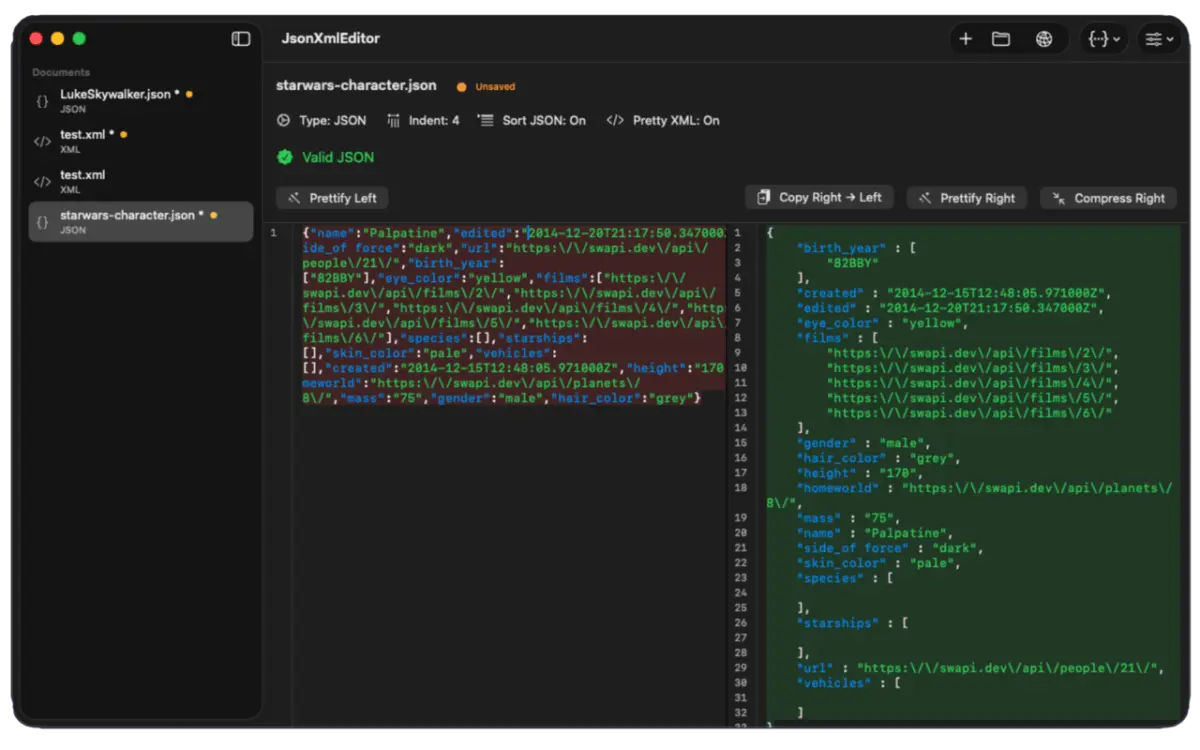
With JsonXmlEditor for macOS, you can paste the payload into the source pane and see formatted output beside it. The app detects JSON automatically, so you don't have to choose a mode before getting started.

You can also choose whether you prefer two, four, or eight spaces for indentation. It sounds like a small detail, but matching the formatting used by your codebase makes copied output much nicer to work with.

Step 2: Validate before debugging your application

If a payload fails inside your app, it is tempting to jump straight into the application code. First, confirm that the JSON itself is valid.

A useful validator should do more than display a red "invalid" badge. It should show the parser error, identify the line and column, and take you directly to the problem. In our example, that immediately narrows the search to the trailing comma and the missing separator.

After fixing both issues, the payload becomes:

{
  "user": {
    "id": 42,
    "name": "Maya",
    "email": "maya@example.com",
    "roles": [
      "admin",
      "editor"
    ]
  },
  "active": true,
  "lastLogin": "2026-07-18T09:30:00Z"
}

Now you know the data is syntactically valid. If the application still fails, you can focus on types, missing fields, or business logic instead of chasing punctuation.

Step 3: Compare the source with the formatted result

Formatting is supposed to change whitespace, not data. When working with an unfamiliar or sensitive payload, it helps to see exactly what changed.

A side-by-side view makes this easy: keep the editable source on the left and the validated, formatted version on the right. Diff highlighting gives you a quick visual check instead of making you scan both versions line by line.

This is also handy when an API changes unexpectedly. Save the known-good response, open the new response, and compare them. A renamed key or a value that changed from a number to a string tends to stand out immediately.

Step 4: Inspect JSON hidden inside a string

Sometimes JSON contains… more JSON. This is common in webhook payloads, message queues, log exports, and older APIs:

{
  "event": "order.created",
  "payload": "{\"orderId\":781,\"total\":49.90,\"currency\":\"EUR\"}"
}

The value of payload is a string, even though its contents are another JSON object. Manually copying the string and removing escape characters gets old very quickly.

JsonXmlEditor can detect nested JSON strings and open the embedded object in its own named tab. That makes it much easier to validate and explore the inner payload while keeping the original document open.

Step 5: Find a value with JSONPath

Scrolling through a large response is rarely the best way to find one field. JSONPath lets you query the document directly.

For our example, this expression selects the user's email address:

$.user.email

And this one selects the first role:

$.user.roles[0]

The app includes a path query panel with autocomplete, so you can test JSONPath expressions against the current document. You can also copy a key's path from the context menu instead of writing it from memory. Once the query works, code generation can turn that path into an accessor for your chosen programming language.

Step 6: Test the API without switching tools

Sometimes the payload isn't the real problem. The server may be returning a different status code, content type, or response body than you expected.

In that case, send the request again and inspect the complete response. JsonXmlEditor includes a lightweight REST client for methods, URLs, query parameters, headers, and JSON request bodies. The response inspector shows the status, headers, body, and request transcript.

A practical debugging loop looks like this:

  • Send the request.
  • Check the HTTP status and response headers.
  • Open the response body as a document.
  • Format and validate it.
  • Query the field you need with JSONPath.

Keeping that loop in one small app saves a surprising amount of window switching.

Step 7: Generate a DTO from the final payload

Once the JSON is clean and stable, you may need a matching class, struct, or interface in your project. Writing it by hand is easy for five fields and tedious for fifty.

JsonXmlEditor can generate DTO code from valid JSON for Swift, TypeScript, Python, Java, C#, Go, and PHP. Treat generated code as a starting point: check optional fields, rename awkward properties, and confirm that numbers and dates use the types your application expects.

For example, the payload above could become a TypeScript shape like this:

interface UserResponse {
  user: {
    id: number;
    name: string;
    email: string;
    roles: string[];
  };
  active: boolean;
  lastLogin: string;
}

The generator removes the repetitive first draft, while you keep control over the final model.

Why use an offline JSON formatter?

Online formatters are convenient, but pasting data into a website means sending it outside your local environment. That matters when a payload contains:

  • Authentication tokens or API keys
  • Customer names, email addresses, or account details
  • Private API endpoints
  • Internal IDs and debugging information
  • Unreleased product data

An offline tool keeps the content on your Mac. JsonXmlEditor is a native macOS app that does not require an account and, according to its privacy information, uses no tracking or analytics. It also starts quickly and stays focused on JSON, XML, REST, and related developer tasks instead of trying to be an entire development environment.

Of course, the safest habit is still to avoid copying secrets unless you genuinely need them. Offline processing simply removes one unnecessary place where your data could be exposed.

Final thoughts

JSON errors are usually small. Finding them is what takes time.

A focused, offline workflow makes the process much less frustrating: format the document, jump to validation errors, compare changes, inspect nested data, and test the response without passing sensitive content through a random browser tool.

If you work with JSON or XML regularly on a Mac, you can learn more about JsonXmlEditor and its developer tools below.

Frequently asked questions

How do I format JSON on a Mac without an online tool?
Paste or open the JSON in a native editor like JsonXmlEditor, which pretty-prints it with your preferred indentation (two, four, or eight spaces) entirely on your Mac, without sending the data to a website.
How do I find the exact error in invalid JSON?
Run validation and look for the reported line and column — a trailing comma or a missing comma between fields are the most common causes, and a good validator jumps straight to the problem instead of just flagging the document as invalid.
How do I find a specific value inside a large JSON response?
Use a JSONPath expression, such as $.user.email or $.user.roles[0], to query the document directly instead of scrolling through it manually.
Can I generate a TypeScript or Swift type from a JSON response?
Yes. Once the JSON is valid, code generation can produce a matching DTO — interface, struct, or class — for languages including Swift, TypeScript, Python, Java, C#, Go, and PHP, which you then review and adjust.
Why avoid pasting API responses into online JSON formatters?
Online tools require sending the payload to someone else's server, which is risky if it contains authentication tokens, customer data, internal URLs, or unreleased product information. A native offline app keeps the data on your Mac.