New in JsonXmlEditor: Open Clipboard Content Instantly
Opening copied data used to take four steps: create a blank document, switch focus, paste, then choose a content type. JsonXmlEditor now makes it one action.
Copy JSON, XML, YAML, or Markdown. Then use the toolbar clipboard button or press Shift-Command-V. JsonXmlEditor creates a new document, inserts the clipboard content, and detects its format automatically.
This article covers a feature in our own app. It is designed for developers and API testers who move structured data between terminals, browsers, API clients, documentation, and local files throughout the day.
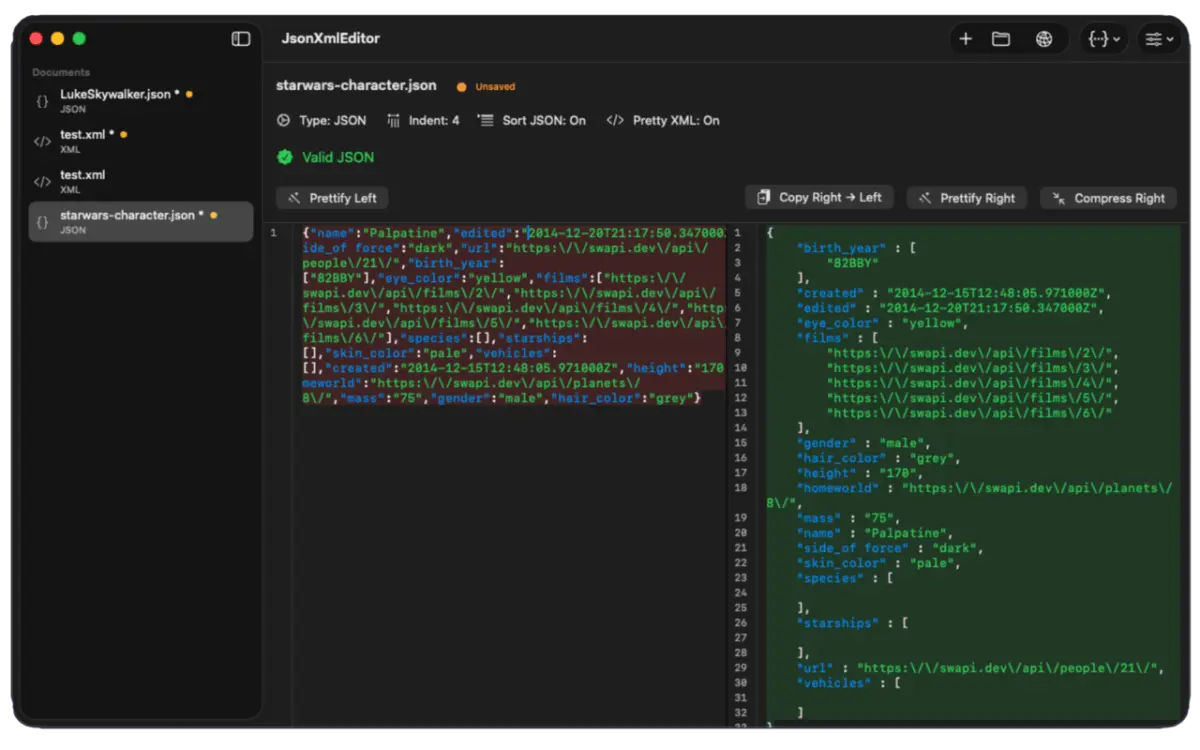
Open clipboard content as a new JsonXmlEditor document
- Copy supported text Copy JSON, XML, YAML, or Markdown from any source application.
- Run the clipboard action Click the toolbar clipboard button or press Shift-Command-V.
- Review the detected document Use the matching formatting, validation, viewing, or preview tools, then save the document if needed.
One command replaces the new-document and paste routine
The clipboard action creates the document, pastes the text, and detects its format. Copy supported text in any app. In JsonXmlEditor, click the toolbar button or press Shift-Command-V. The app opens a separate document with the content already loaded.
Your current document stays separate. That matters when you are comparing an API response with a fixture, checking a revised configuration, or keeping reference data beside the payload you are debugging.
The shortcut follows the same flow every time. There is no blank tab to prepare and no format picker to interrupt the task.
Automatic detection recognizes four useful formats
JsonXmlEditor examines the clipboard text and opens the new document with the matching content type. Automatic detection currently covers:
- JSON for API responses, request bodies, fixtures, and configuration data.
- XML for service responses, feeds, manifests, and structured documents.
- YAML for deployment files, CI configurations, and application settings.
- Markdown for READMEs, release notes, API documentation, and technical drafts.
Each format opens in its own view. JSON and XML are ready to format and validate. YAML opens in its structured viewer. Markdown opens with its readable preview. The Markdown editor guide explains the source-and-preview workflow.
Why clipboard opening helps during API testing
API tests produce a steady stream of temporary data. You may copy a response from a browser, terminal, log viewer, issue tracker, or REST client. You need to inspect it now, not create a permanent file first.
With the clipboard shortcut, a copied response opens at once in its own document. You can format it, find syntax errors, or compare structures. You can also follow a local JSON debugging workflow without first saving a temporary file.
When the response is valid JSON, the next step can be a focused query instead of manual scrolling. The JSONPath guide covers selecting nested fields and array values from larger responses.
Use the clipboard workflow in three steps
The workflow is intentionally short:
- Copy the content. Select JSON, XML, YAML, or Markdown in its source application and copy it normally.
- Open it in JsonXmlEditor. Click the toolbar clipboard button or press Shift-Command-V.
- Check the detected document. Review the content type, then format, validate, query, preview, edit, or save it as needed.
No source file is required. If the content becomes worth keeping, save the new document through the normal file workflow after you finish inspecting or editing it.
Clipboard content stays in the local Mac workspace
Clipboard content follows the same local process as other JsonXmlEditor documents. The app's published data-handling details state that documents stay on your Mac. JsonXmlEditor does not upload them to the little bakery.
This matters when API responses contain internal URLs, tokens, customer fields, or unreleased settings. Remove secrets before you share or save a payload elsewhere. Inspection inside JsonXmlEditor does not need an online formatter.
A small feature for a high-frequency task
Clipboard opening is not a new data format or a larger REST client. Its value comes from removing repeated setup from a task developers perform many times: copy structured text, inspect it, then return to the original work.
If JSON, XML, YAML, or Markdown is already on your clipboard, JsonXmlEditor can make it a correctly detected document in one action. Download the free Mac app from the App Store using the link below and try the toolbar button or Shift-Command-V on your next payload.
Frequently asked questions
- What does Shift-Command-V do in JsonXmlEditor?
- It opens the current clipboard text as a new document and detects whether the content is JSON, XML, YAML, or Markdown.
- Do I need to create a blank document before pasting?
- No. The clipboard action creates the new document and inserts the copied content for you.
- Which clipboard formats can JsonXmlEditor detect?
- The clipboard workflow detects JSON, XML, YAML, and Markdown automatically.
- Does JsonXmlEditor upload copied API responses?
- No. JsonXmlEditor processes opened documents locally on your Mac and does not upload them to the little bakery.