Skip to content

JSONPath, Minus the Headache: How to Find Any Value in a JSON Response

Published

You have a huge JSON response staring back at you, and somewhere inside it is the single value you need — an order ID, a customer email, a price, or a nested flag. You could spend the next ten minutes opening brackets, collapsing objects, and wondering why APIs love to nest everything five levels deep.

Or you can use JSONPath.

JSONPath is a simple query language for JSON. Instead of manually digging through a massive response, it lets you write a short line describing where the value lives. If you have ever written a file path in terminal or a CSS selector in CSS, JSONPath will feel familiar right away.

No specs, no formal jargon — let's just make JSONPath actually useful for your daily workflow.

Find values in any JSON response with JSONPath

  1. Start at the root Use $ to reference the root of the JSON document.
  2. Navigate properties with dot notation Access nested object properties using dots like $.store.name.
  3. Access array elements by index Use zero-based brackets like $.books[0] to pick specific array items.
  4. Extract values across all array items Use wildcards like $.books[*].title to pull matching fields from every item in an array.
  5. Handle keys with special characters Use bracket notation with quotes like $.user['last-login'] for irregular key names.
  6. Search nested structures recursively Use $..id to locate matching key names at any depth when the exact path is unknown.
  7. Filter arrays with conditions Filter array elements based on conditions like $.books[?(@.inStock == true)].title.

A JSON response we can actually work with

We'll use a tiny fictional bookstore API response. Real API payloads are usually messier and much longer, but this one has just enough nesting to demonstrate every useful trick.

{
  "store": {
    "name": "Page & Pixel",
    "currency": "EUR",
    "books": [
      {
        "id": "bk_101",
        "title": "The Long Way Home",
        "author": "Nora Hale",
        "price": 14.99,
        "inStock": true
      },
      {
        "id": "bk_102",
        "title": "Debugging After Dark",
        "author": "Milo Grant",
        "price": 19.5,
        "inStock": false
      }
    ],
    "owner": {
      "name": "Jamie Chen",
      "email": "jamie@example.com"
    }
  }
}

Before writing any queries, here is the most important rule to keep in mind: every JSONPath expression starts at the root of your document, represented by the dollar sign ($).

So the shortest possible JSONPath is simply:

$

Not very exciting on its own — it just means "return the entire document." But it gives us our starting anchor for everything else.

Getting to a normal property

For basic object properties, use dot notation. That's all there is to it.

Want the store's name?

$.store.name

That reads cleanly from left to right: start at root ($), go into store, grab name.

The result:

Page & Pixel

Need the owner's email address instead?

$.store.owner.email

Once you get used to this, writing JSONPath stops feeling like learning a query syntax and feels much more like typing out folder paths.

Getting one item from an array

Arrays use square brackets and start counting at index 0 — exactly like JavaScript, Python, Swift, or almost any language you code in.

To grab the very first book:

$.store.books[0]

To grab just its title:

$.store.books[0].title

Result:

The Long Way Home

And the second book's price:

$.store.books[1].price
19.5

This comes in handy whenever API documentation promises "the first item in data contains your object" and you want to double-check before writing code against it.

Getting the same field from every item

This is where JSONPath becomes a huge time-saver. Suppose you want every book title in the array, not just the first one. Instead of writing a specific index, use the wildcard star (*).

$.store.books[*].title

This tells JSONPath: navigate to books, look at every object inside the array, and return every item's title.

You get back a clean list of titles:

The Long Way Home
Debugging After Dark

Wildcards are fantastic for quick sanity checks across big arrays:

$.store.books[*].id
$.store.books[*].price
$.store.books[*].inStock

Instead of manually expanding twenty objects one by one, you can collapse the data down to a single list of values. It's a tiny shortcut, but it makes inspecting data remarkably satisfying.

When keys have spaces, dashes, or awkward names

Dot notation works smoothly until an API throws you a key like last-login, display name, or 2026_status. Dots break when key names contain spaces or hyphens. When that happens, switch to bracket notation with quotes:

$.store['display name']

Or for hyphens:

$.user['last-login']

It's a bit more verbose, but rock-solid. Bracket notation works for standard keys too, so you could technically write your entire path like this:

$['store']['owner']['email']

Most developers stick to dots for clean property names and switch to quotes inside brackets only when a key gets awkward.

Finding a value when you don't know the exact path

This happens constantly when working with massive third-party webhooks: you know the target field is named id, but there are eight different id fields scattered across different levels of the payload.

Many JSONPath engines support recursive descent using a double dot (..):

$..id

This pulls every single key named id anywhere in the document tree. It's a handy way to explore unfamiliar JSON, but use it sparingly — on a huge payload, it can dump a noisy, disorganized wall of text.

A smarter approach is to use .. once to discover where the target fields live, then lock down a specific, predictable path:

$.store.books[*].id

A quick note on tool compatibility: JSONPath has a few subtle dialects. Simple dot paths, array indices, and wildcards work identically everywhere. Recursive searches and complex filters can behave slightly differently depending on the library or app you're using. If a query returns nothing, check whether your tool supports that specific feature before assuming your syntax is wrong.

Filtering an array (when your tool supports it)

Filter expressions let you return only array elements that match specific conditions. For instance, to get the titles of only books currently in stock:

$.store.books[?(@.inStock == true)].title

Or to filter for books under €15:

$.store.books[?(@.price < 15)].title

The @ symbol represents "the current array item being evaluated." In plain speech: scan through every book, keep those where price is less than 15, and return their title properties.

Filters are super powerful, but they're also where JSONPath implementations vary the most. If your tool doesn't support filter expressions, you can still pull the full list with a wildcard and skim the values in seconds:

$.store.books[*].title
$.store.books[*].inStock

Maybe not quite as fancy, but it gets the job done without reading thousands of raw lines.

A quick debugging routine for messy payloads

Picture this: a support ticket comes in stating "Product titles aren't displaying in the app." You pull the API response, but it's a 3,000-line minified blob.

Here is a quick 5-step checklist to isolate the issue:

  • Pretty-print the JSON first to make the structure human-readable.
  • Search for the key name — title — or click directly on the key in your formatted tree to copy its exact JSONPath.
  • Run the query in your inspector to verify what values come back.
  • Use built-in code generation to convert your confirmed JSONPath directly into data-access code for your codebase (Swift, TypeScript, Python, etc.).
  • Tighten the query if you are getting too many unrelated results.

For our bookstore example, you'd land on:

$.store.books[*].title

If this query returns all titles cleanly, the issue is likely in your application's frontend parsing or data mapping logic. If it returns null or missing keys, you have concrete proof to take straight to your backend team.

Using JSONPath on a Mac without the browser-tab circus

You can test JSONPath queries in an online playground. For throwaway mock data, that's fine. But it's not ideal when the response contains customer tokens, internal endpoints, authorization credentials, or private user data.

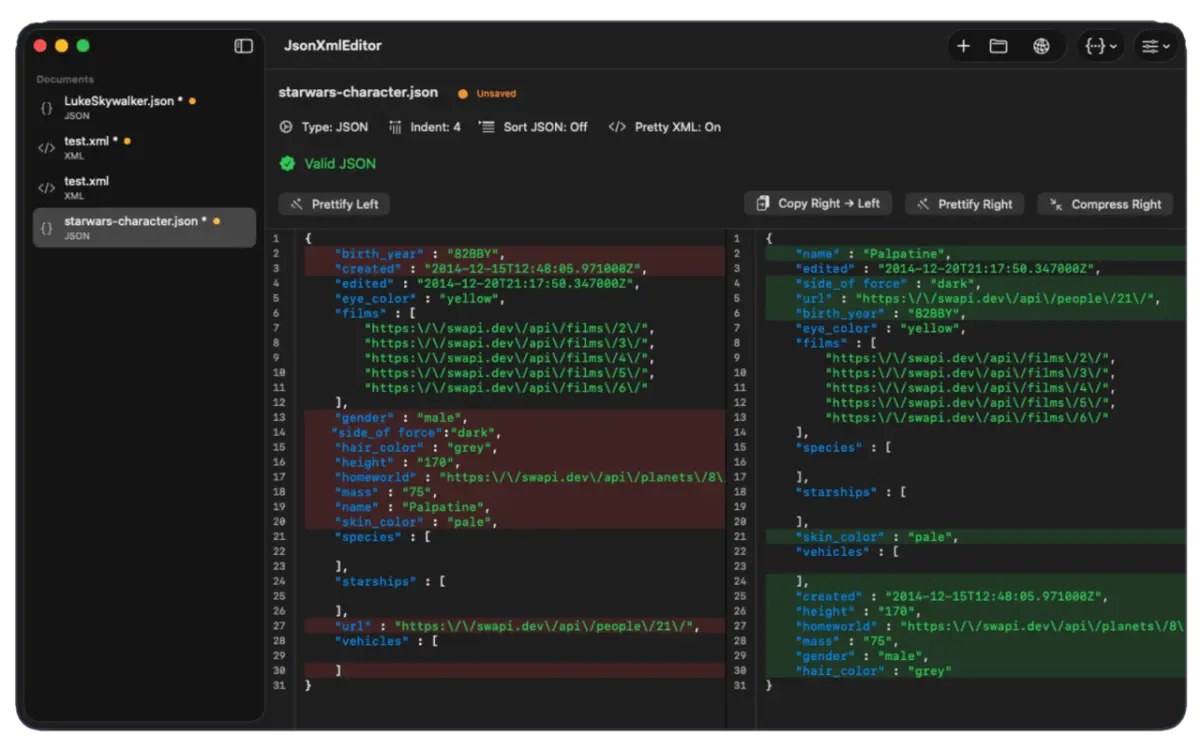
JsonXmlEditor is a native Mac app that keeps your entire workflow offline in one place: format and validate JSON, right-click any key in the formatted JSON tree to copy its JSONPath directly, and run queries without typing paths from memory.

Key features for JSONPath debugging on Mac:

  • Copy JSONPath from formatted JSON: Right-click any key or value in the formatted editor view to instantly copy its exact path to your clipboard.
  • Code generator for JSONPath: Turn any confirmed JSONPath or XPath query straight into type-safe accessor code for Swift, TypeScript, Python, Java, Go, C#, or PHP.
  • Live query panel: Run JSONPath expressions with autocomplete and real-time result highlighting against your payload.

Instead of bouncing between a REST client, an online formatter, and your text editor, you can inspect the API response, copy the field path directly from formatted JSON, test it, and generate production code — all in one native window.

A tiny JSONPath cheat sheet

Here are the patterns you'll use most often in day-to-day debugging:

  • $ — The whole document root
  • $.store.name — Specific object property
  • $.store.books[0] — Specific array item by index
  • $.store.books[0].title — Specific property of an array item
  • $.store.books[*].title — Same property across all array items
  • $.user['last-login'] — Keys with spaces, hyphens, or special chars
  • $..id — Recursive search for matching key names anywhere in document*
  • $.store.books[?(@.inStock == true)] — Filter array items by boolean or value condition*

(*Note: Support for recursive search ($..) and filter expressions ([?...]) can vary between JSONPath libraries.)

The part worth keeping in your head

You don't need to memorize every bit of JSONPath syntax. Start with three simple building blocks:

$.thing.property
$.things[0]
$.things[*].property

Those three patterns cover a surprising amount of everyday API work.

Next time you find yourself scrolling through a massive JSON response looking for a single field, give JSONPath a go. The goal isn't to become a JSONPath wizard — it's to find the value, fix the bug, and get on with your day.

For a focused, offline workflow on macOS, explore JsonXmlEditor for Mac.

Frequently asked questions

What is JSONPath?
JSONPath is a query language for JSON payloads, similar to how XPath queries XML or CSS selectors target HTML elements. It lets you extract specific values or lists of properties from deeply nested JSON without manual parsing.
What does $ mean in JSONPath?
The $ symbol represents the root object or array of the JSON document. Every JSONPath query starts from the root.
How do I query all items in a JSON array?
Use the wildcard syntax [*], such as $.store.books[*].title, to extract the title property from every object inside the books array.
How do I handle JSON keys with spaces or hyphens?
Use bracket notation with quotes instead of dot notation, for example $.user['last-login'] or $.store['display name'].
Can I test JSONPath expressions offline on a Mac?
Yes. Native Mac apps like JsonXmlEditor let you format JSON, copy exact JSONPath expressions directly from any key in the formatted document, run queries with autocomplete, and generate data-access code without uploading sensitive API payloads to public online websites.