Imagario for macOS Sequoia 15: Photo Culling Without a Catalog
The developer confirms that Imagario 1.2.0 targets macOS Sequoia 15 and later, so you can keep a Sequoia Mac in your photo workflow without moving to the newest macOS release just to review a shoot. The Mac App Store listing currently shows conflicting minimum-version details, so verify compatibility with the developer before installing.
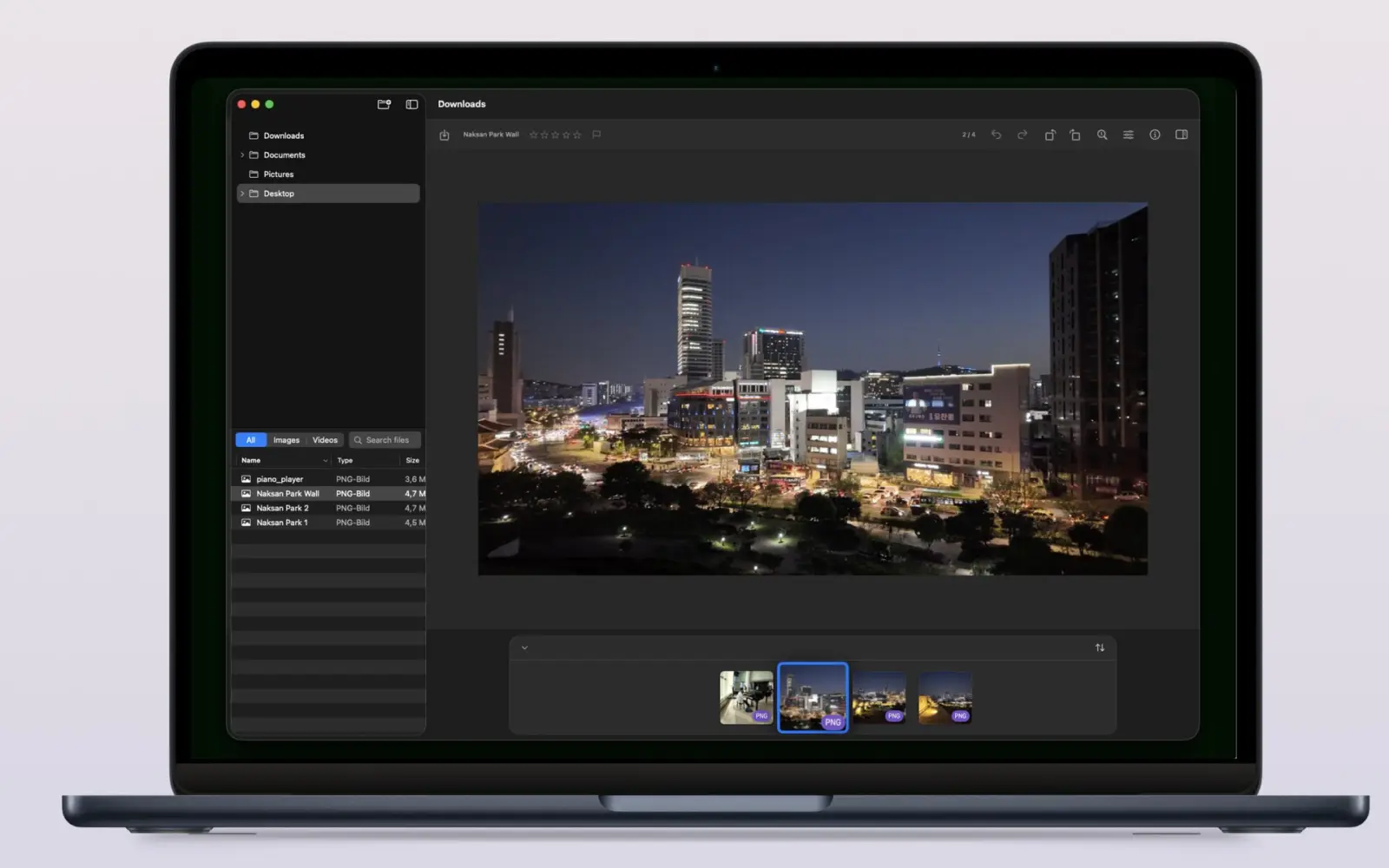
Imagario is built around the folders you already use: open a shoot, move through images, check camera and location metadata, rate frames, and gather selects. No catalog import stands between you and the first photo.
Which macOS versions do current photo apps require?
The developer confirms macOS Sequoia 15 as Imagario 1.2.0’s minimum deployment target. That lets photographers who are staying on Sequoia review shoots without upgrading to a newer macOS first. The App Store listing currently conflicts: its description says macOS 26.4 or later, while its Compatibility section says macOS 14.0 or later. Confirm compatibility with the developer before downloading.
In a snapshot of seven current photo app editions checked on October 2, 2026, four list Ventura 13 or Sonoma 14 as their minimum: Adobe Lightroom for desktop requires macOS Sonoma 14 or later; Lightroom Classic requires Ventura 13.1 or later; Capture One requires macOS 14 or newer; and Photomator requires Ventura 13 or later. Lightroom and Lightroom Classic are separate products from the same vendor. Adobe lists Lightroom desktop requirements, Adobe lists Lightroom Classic requirements, Capture One lists current OS compatibility, and Apple’s Photomator support page lists Ventura 13.
Other dedicated viewers set lower minimums: Picview and ApolloOne list macOS 12 Monterey or later, while FastRawViewer 2 lists macOS 10.13 or later. So the evidence does not support a blanket claim that every competitor dropped older macOS. It does show that system requirements differ by product and release; verify the current listing before installing.
Imagario’s case is its focused culling workflow on Sequoia: open folders without catalog import, inspect detailed metadata, and gather keepers while leaving source files untouched. Browse Imagario’s photo browser features and confirm compatibility with the developer before installing while the App Store listing remains inconsistent.
A faster route from photo folder to keepers
Imagario starts with a folder, not an import queue. Open a camera-card folder, external drive, or existing shoot directory, then move through its images in place. A lazy-loading folder tree keeps large libraries navigable without making you import them into a separate catalog first.
- Rate frames from zero to five stars or mark Picks and Rejects with keyboard shortcuts.
- Use native zoom, trackpad gestures, a thumbnail strip, and arrow-key navigation to inspect a sequence.
- Read camera, lens, exposure, capture-time, authoring, and GPS fields in the metadata inspector.
- Gather chosen photos as copies in a separate collection while leaving the original folder in place.
This workflow is for choosing and reviewing images, not replacing a full photo editor. When a frame needs extensive retouching or a complex RAW development pass, keep using the editor you prefer and send only your selected files into that next step. For more on location fields, see our guide to viewing EXIF and GPS metadata on Mac.
Keep the source shoot safe while you sort
Imagario keeps culling separate from the original files. Ratings and selections help you decide what to keep; chosen images are gathered as copies in a collection instead of being moved or renamed in the source folder. That helps when you are reviewing a card that is still being backed up, working from a client folder, or comparing selects later.
You can make light adjustments, rotate or crop, and strip sensitive metadata from a copy. Imagario is sandboxed and asks for access to the folders you choose; it does not need an account, cloud library, or upload step for this local review workflow. Verify any output copy before sharing it, especially when location metadata matters.
The result is a small, practical step between Finder and a full editing suite: open the folder, make decisions, keep originals safe, and move on with a clean set of selects. See our comparison of Mac photo culling apps and workflows.
Start free, add Pro only for the formats you use
Imagario’s free tier handles JPEG, HEIC, PNG, GIF, and TIFF review, along with ratings, Picks and Rejects, light adjustments, metadata inspection, and keeper collections. You can try the core culling workflow before deciding whether its professional-format tools fit your library.
Imagario Pro adds camera RAW support such as CR3, NEF, ARW, RAF, ORF, RW2, and DNG; JXL and AVIF; MP4 and MOV playback; HDR viewing on supported displays; video frame export; and advanced EXIF, IPTC, and geotag inspection. The current product page lists Pro as a $19.99 one-time purchase. Confirm current price and macOS compatibility in the App Store listing before purchase.
Choose Free if your immediate need is to browse standard image folders and select keepers. Consider Pro when RAW, video, HDR, or expanded metadata support will remove a separate step from your workflow. See Imagario Pro formats and tools.
Frequently asked questions
- What is Imagario’s minimum macOS version?
- The developer confirms Imagario 1.2.0 targets macOS Sequoia 15. The Mac App Store listing currently conflicts: the description says macOS 26.4 or later while Compatibility says macOS 14.0 or later. Confirm compatibility with the developer before installing.
- Does Imagario import photos into a catalog?
- No. Imagario opens your existing folders directly, so you can browse and cull without importing the shoot into a catalog database.
- Will culling in Imagario change my original photos?
- No. Imagario keeps the source folder intact and gathers selected photos as copies in a separate collection. Adjustments and metadata changes are saved to copies.
- Is Imagario free to use?
- Yes. The core workflow for common image formats is free. Imagario Pro is an optional one-time purchase for RAW, JXL, AVIF, video, HDR viewing, and advanced metadata features; check the App Store for current terms.
- Have all Mac photo apps dropped older macOS versions?
- No. In this seven-edition sample, four list Ventura 13 or Sonoma 14 as their minimum, while Picview and ApolloOne require Monterey 12 or later and FastRawViewer lists macOS 10.13 or later. Adobe Lightroom and Lightroom Classic are counted as separate products, and requirements vary by release.
Sources and further reading
- Adobe Lightroom system requirements (desktop)
- Adobe Lightroom Classic system requirements
- Capture One system requirements and OS compatibility
- Apple Support: Photomator system requirements
- Picview Mac App Store listing
- ApolloOne Mac App Store listing
- FastRawViewer download and system requirements
- Imagario for Mac: product features and current availability
- Imagario on the Mac App Store