Combine Videos and Batch Brand Clips in ReelBrand: Free & Pro
ReelBrand Free can add your logo to a batch of videos. ReelBrand Pro can also combine multiple clips into one video. Choose batch processing when you need separate branded files. Choose combining when several clips belong in one finished story.
For content creators and small businesses, those are everyday jobs: brand a week's product clips or assemble a short event recap. Neither task needs an expensive editing suite when selection, logo placement, and export cover your needs. ReelBrand for Mac, iPhone, and iPad keeps those jobs in a focused video branding app.
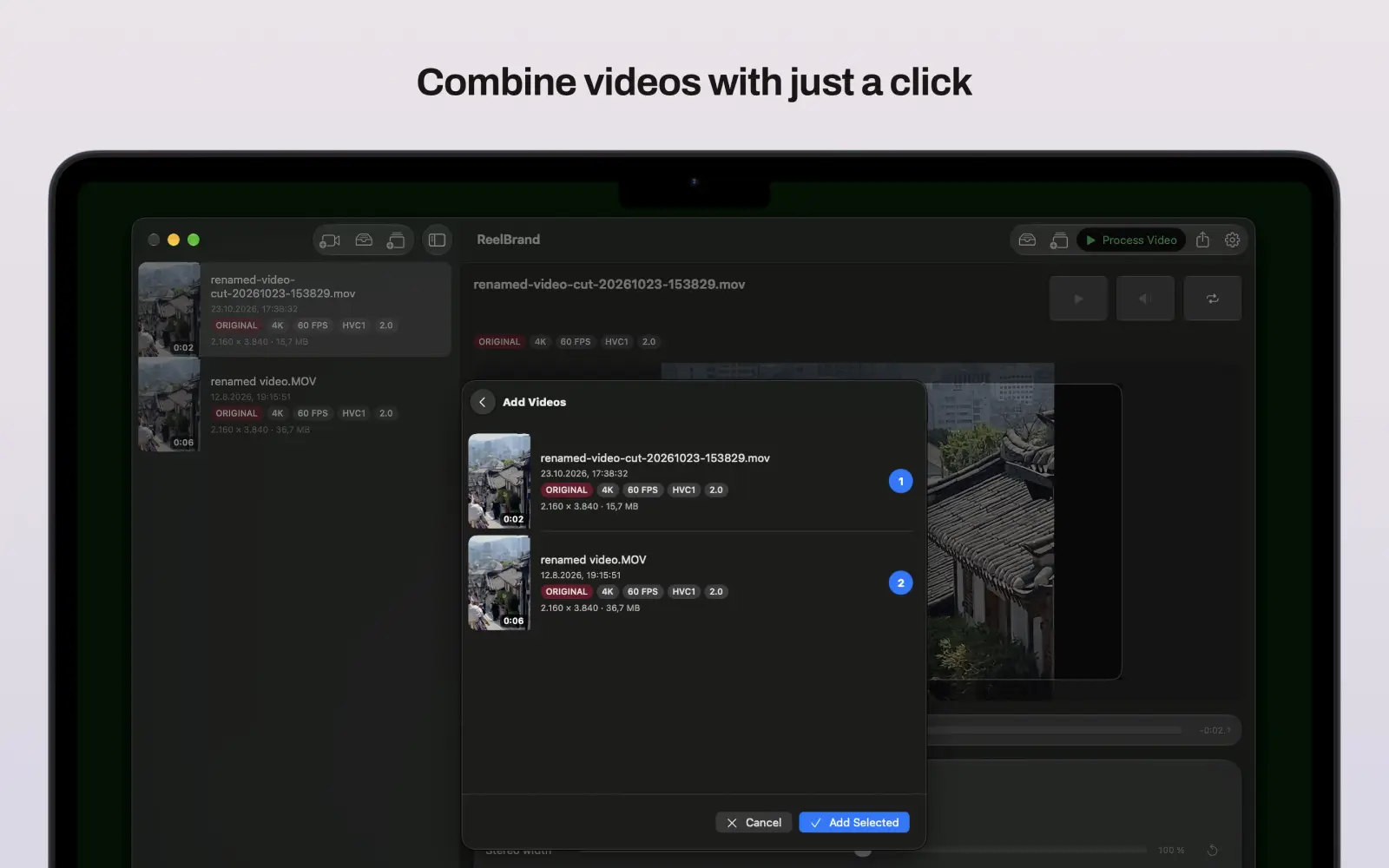
Video combining vs. batch processing: which do you need?
Batch processing repeats a branding job across separate videos. Combining joins selected clips into one output. The number of files you want to publish makes the choice straightforward.
Suppose a bakery records five pastry clips for five separate social posts. A batch can apply its logo across the set. If the bakery wants one video showing preparation, baking, and the finished display, combining suits that sequence.
The distinction also matters when comparing ReelBrand Free and Pro. Batch branding itself is available in Free; upgrading adds combining and higher export quality.
| Task or export option | ReelBrand Free | ReelBrand Pro |
|---|---|---|
| Apply a PNG logo to a video | Yes | Yes |
| Batch brand videos as separate outputs | Yes | Yes |
| Combine clips into one video | No | Yes |
| Faster export | Up to 1280 × 720 | Up to 1280 × 720 |
| Balanced export | No | Up to 1920 × 1080 |
| High export | No | Source resolution, including 4K when the source is 4K |
| Payment | Free download | Optional one-time Pro purchase |
The resolution entries describe export presets, not an upscale promise. Choosing High for a 720p source does not create original 4K detail. Likewise, the best choice depends on your footage and delivery needs.
Before starting a batch, open Settings, choose Video, then Export Quality. Free offers Faster (720p). Pro also unlocks Balanced (1080p) and High Quality. Select the preset that fits your publishing destination before creating the job.
Before you start: gather your clips and PNG logo
Have your videos imported into ReelBrand and your logo ready as a PNG. A transparent background is useful when you want only the logo visible over the footage. You can choose an existing brand icon or import one during batch setup.
Decide whether you need separate posts or one assembled video before starting. For a combined video, plan the opening clip and sequence. For a batch, check whether the videos share the same orientation or include both portrait and landscape footage.
If logo placement is new to you, the Mac and iPhone watermark guide explains the basic branding workflow. You don't need to learn a full editing timeline to use these two features.
How to batch brand videos in ReelBrand Free or Pro
Use Batches to select multiple videos, place your logo, review the job, and start processing. ReelBrand processes batch items one after another and produces separate branded outputs.
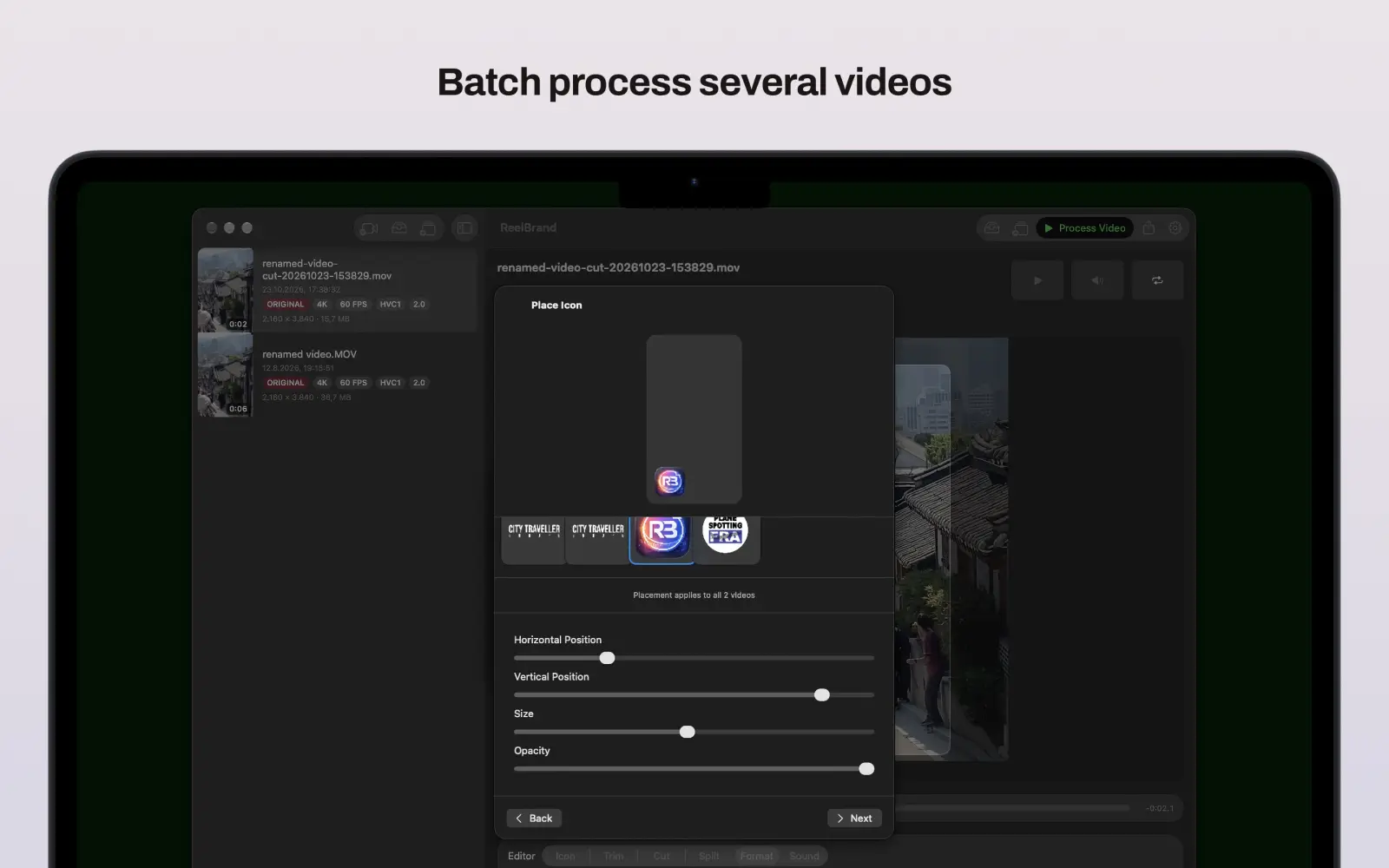
- Open Batches and choose New Batch. Start with the videos already imported into your library.
- Select your videos. In Select Videos, choose the clips for this job, then choose Next. Use the unprocessed-video filter if helpful.
- Choose your PNG logo in Place Icon. Pick one from the icon library or import the file you want to use.
- Set its position, size, and opacity. Use shared placement where the selected formats allow it, or adjust placement per video. Check portrait and landscape clips separately.
- Choose Next to review the batch. Confirm the selected videos. On Mac, choose the destination folder before starting.
- Choose Start Batch. Follow progress in Batches, then review the resulting files before publishing.
Shared placement is useful for a set of similarly framed clips. Per-video placement helps when one clip needs the logo moved away from a face, product label, or important detail. Applying the same logo doesn't mean every frame needs the same visual compromise.
Batch setup handles video selection and branding placement. If your clips need individual creative edits, prepare and check those separately. Don't assume a batch automatically repeats every trim or audio adjustment from another editing session.
For a café, this might mean branding separate coffee, cake, and lunch clips for a content calendar. For a creator, it might mean preparing several independent tips. Each output remains available as its own post.
The ReelBrand Mac workflow provides more context for working through a local video library.
How to combine videos into one with ReelBrand Pro
Use Combine to assemble selected clips in order and export a single video. Combining requires Pro. It is useful for short demonstrations, product sequences, and event recaps that need more than one shot.
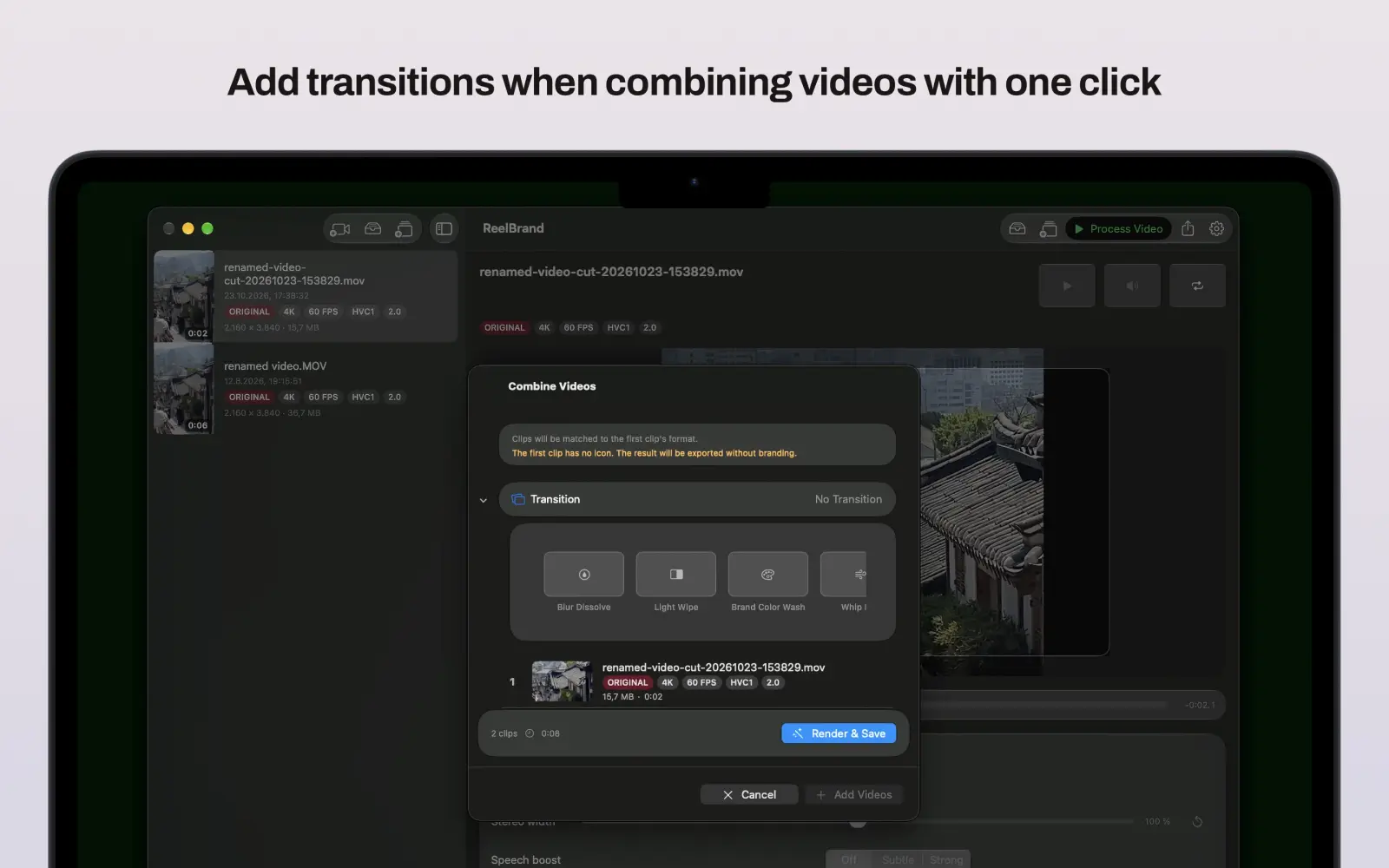
- Prepare the first clip's branding. Set the logo placement in the regular editor for the clip you intend to use first.
- Open Combine. Have at least two videos in your library, then choose Combine to open the combining workflow.
- Choose Add Videos. Select clips in the order you want them to appear, then choose Add Selected.
- Check the sequence. Reorder clips or remove unwanted ones. Add optional transitions where they support the sequence.
- Review the first clip again. The first clip in the ordered list supplies the logo placement for the combined video. Changing the opening clip can change that placement.
- Choose Render & Save. Review the resulting video from beginning to end before sharing it.
Selection order gives you a starting sequence, while reordering lets you refine it. A product video might open with the finished item, show how it works, and close with a detail shot. An event recap could move from arrival to activity to the final group shot.
You can keep a direct cut or choose transitions such as Blur Dissolve, Light Wipe, and Whip Pan. Apply one style across the sequence or adjust individual joins.
The first clip supplies the logo and its placement. If that clip has no logo, the combined output has no branding. Set it deliberately, then check again after reordering. A logo that looks clear over an empty opening frame may cover important action later.
This workflow suits a focused assembly job. If the video needs complex compositing or detailed sound production, finish that work in a suitable editor. ReelBrand's value here is the short path from prepared clips to one branded video.
Check quality and compatibility before publishing
Watch the exported result, especially when combining clips from different sources. ReelBrand's combining interface warns when clips have differing formats or quality. Standardizing them can affect color, sharpness, frame rate, or sound.
Differences can include resolution, frame rate, HDR versus SDR, or audio format. A phone-recorded HDR clip and an older SDR clip deserve a deliberate review together. Matching capture settings across a planned shoot can make the final sequence more consistent.
For each export, check three things:
- Branding: Is the logo readable without hiding the subject or competing with platform controls?
- Playback: Do clip joins, color, motion, and audio look and sound right?
- Delivery: Did you choose the intended quality and produce the correct number of files?
Video rendering runs locally on your device rather than requiring a cloud rendering upload. That keeps an upload step out of the branding workflow. For a deeper explanation of local rendering and color checks, see our 4K and HDR watermarking article.
Choose Pro for combined videos and higher-resolution exports
Free lets you start with a useful workflow: select a set of clips, place your logo, and export separate branded videos. Pro adds the option to turn several shots into one story, alongside higher-resolution export presets.
If you regularly assemble product demos, event recaps, or creator videos, ReelBrand Pro brings those jobs into the same focused app. You can keep routine branding and clip combining straightforward without buying an expensive editing suite for those tasks.
Get ReelBrand on the App Store, then choose Pro in the app when you need combining or higher-quality exports.
Editorial disclosure: We develop ReelBrand. This guide is based on a review of the project's source code on October 23, 2026, rather than a hands-on performance test. It describes the reviewed implementation; the app version installed on your device may differ. Mac screenshots were supplied by the developer.
Frequently asked questions
- Can I batch process videos in ReelBrand Free?
- Yes. ReelBrand Free includes batch branding and the Faster export preset, up to 1280 × 720. Pro is useful when you need higher-resolution batch exports; batch processing itself is not a Pro-only feature.
- Can I combine videos in ReelBrand Free?
- No. Combining multiple clips into a single video requires ReelBrand Pro. Free remains suitable for branding individual videos and batches of separate videos.
- Will a batch create one merged video?
- No. A batch produces separate branded video files, processing the selected items sequentially. Use Combine in Pro when you want several clips assembled into one output.
- Can ReelBrand combine HDR and SDR clips?
- The combining workflow flags differences such as HDR and SDR sources. It standardizes the result, which can affect the output's appearance. Check color and playback before publishing mixed-source footage.
- Is ReelBrand Pro a subscription?
- No. Pro is an optional one-time purchase. Check current ReelBrand pricing and the purchase screen for the amount in your region.